ExoPlayer provides functionality to download media for offline playback. In most
use cases it’s desirable for downloads to continue even when your app is in the
background. For these use cases your app should subclass DownloadService, and
send commands to the service to add, remove and control the downloads. The
diagram below shows the main classes that are involved.
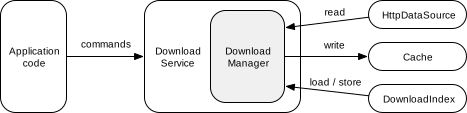
DownloadService: Wraps aDownloadManagerand forwards commands to it. The service allows theDownloadManagerto keep running even when the app is in the background.DownloadManager: Manages multiple downloads, loading (and storing) their states from (and to) aDownloadIndex, starting and stopping downloads based on requirements such as network connectivity, and so on. To download the content, the manager will typically read the data being downloaded from aHttpDataSource, and write it into aCache.DownloadIndex: Persists the states of the downloads.
Creating a DownloadService
To create a DownloadService, you need to subclass it and implement its
abstract methods:
getDownloadManager(): Returns theDownloadManagerto be used.getScheduler(): Returns an optionalScheduler, which can restart the service when requirements needed for pending downloads to progress are met. ExoPlayer provides these implementations:PlatformScheduler, which uses JobScheduler (Minimum API is 21). See the PlatformScheduler javadocs for app permission requirements.WorkManagerScheduler, which uses WorkManager.JobDispatcherScheduler, which uses Firebase JobDispatcher (Deprecated). See the JobDispatcherScheduler javadocs for app permission requirements.
getForegroundNotification(): Returns a notification to be displayed when the service is running in the foreground. You can useDownloadNotificationHelper.buildProgressNotificationto create a notification in default style.
Finally, you need to define the service in your AndroidManifest.xml file:
<service android:name="com.myapp.MyDownloadService"
    android:exported="false">
  <!-- This is needed for Scheduler -->
  <intent-filter>
    <action android:name="com.google.android.exoplayer.downloadService.action.RESTART"/>
    <category android:name="android.intent.category.DEFAULT"/>
  </intent-filter>
</service>
See DemoDownloadService and AndroidManifest.xml in the ExoPlayer
demo app for a concrete example.
Creating a DownloadManager
The following code snippet demonstrates how to instantiate a DownloadManager,
which can be returned by getDownloadManager() in your DownloadService:
// Note: This should be a singleton in your app.
databaseProvider = new ExoDatabaseProvider(context);

// A download cache should not evict media, so should use a NoopCacheEvictor.
downloadCache = new SimpleCache(
    downloadDirectory,
    new NoOpCacheEvictor(),
    databaseProvider);

// Create a factory for reading the data from the network.
dataSourceFactory = new DefaultHttpDataSourceFactory(userAgent);

// Create the download manager.
downloadManager = new DownloadManager(
    context,
    databaseProvider,
    downloadCache,
    dataSourceFactory);

// Optionally, setters can be called to configure the download manager.
downloadManager.setRequirements(requirements);
downloadManager.setMaxParallelDownloads(3);
See DemoApplication in the demo app for a concrete example.
The example in the demo app also imports download state from legacy ActionFile
instances. This is only necessary if your app used ActionFile prior to
ExoPlayer 2.10.0.
Adding a download
To add a download you need to create a DownloadRequest and send it to your
DownloadService. For adaptive streams DownloadHelper can be used to help
build a DownloadRequest, as described further down this page. The example
below shows how to create a download request for a progressive stream:
DownloadRequest downloadRequest = new DownloadRequest(
    contentId,
    DownloadRequest.TYPE_PROGRESSIVE,
    contentUri,
    /* streamKeys= */ Collections.emptyList(),
    /* customCacheKey= */ null,
    appData);
where contentId is a unique identifier for the content, and appData is any
data that the app wishes to associate with the download. In simple cases, the
contentUri can often be used as the contentId, however apps are free to use
whatever ID scheme best suits their use case.
Once created, the request can be sent to the DownloadService to add the
download:
DownloadService.sendAddDownload(
    context,
    MyDownloadService.class,
    downloadRequest,
    /* foreground= */ false)
where MyDownloadService is the app’s DownloadService subclass, and the
foreground parameter controls whether the service will be started in the
foreground. If your app is already in the foreground then the foreground
parameter should normally be set to false, since the DownloadService will
put itself in the foreground if it determines that it has work to do.
Removing downloads
A download can be removed by sending a remove command to the DownloadService,
where contentId identifies the download to be removed:
DownloadService.sendRemoveDownload(
    context,
    MyDownloadService.class,
    contentId,
    /* foreground= */ false)
You can also remove all downloaded data with
DownloadService.sendRemoveAllDownloads.
Starting and stopping downloads
A download will only progress if four conditions are met:
- The download doesn’t have a stop reason (see below).
- Downloads aren’t paused.
- The requirements for downloads to progress are met. Requirements can specify constraints on the allowed network types, as well as whether the device should be idle or connected to a charger.
- The maximum number of parallel downloads is not exceeded.
All of these conditions can be controlled by sending commands to your
DownloadService.
Setting and clearing download stop reasons
It’s possible to set a reason for one or all downloads being stopped:
// Set the stop reason for a single download.
DownloadService.sendSetStopReason(
    context,
    MyDownloadService.class,
    contentId,
    stopReason,
    /* foreground= */ false);

// Clear the stop reason for a single download.
DownloadService.sendSetStopReason(
    context,
    MyDownloadService.class,
    contentId,
    Download.STOP_REASON_NONE,
    /* foreground= */ false);
where stopReason can be any non-zero value (Download.STOP_REASON_NONE = 0 is
a special value meaning that the download is not stopped). Apps that have
multiple reasons for stopping downloads can use different values to keep track
of why each download is stopped. Setting and clearing the stop reason for all
downloads works the same way as setting and clearing the stop reason for a
single download, except that contentId should be set to null.
When a download has a non-zero stop reason, it will be in the
Download.STATE_STOPPED state.
Pausing and resuming all downloads
All downloads can be paused and resumed as follows:
// Pause all downloads.
DownloadService.sendPauseDownloads(
    context,
    MyDownloadService.class,
    /* foreground= */ false);

// Resume all downloads.
DownloadService.sendResumeDownloads(
    context,
    MyDownloadService.class,
    /* foreground= */ false);
When a download is paused, it will be in the Download.STATE_QUEUED state.
Setting the requirements for downloads to progress
Requirements can be used to specify constraints that must be met for
downloads to proceed. The requirements can be set by calling
DownloadManager.setRequirements() when creating the DownloadManager, as in
the example above. They can also be changed dynamically by sending a command
to the DownloadService:
// Set the download requirements.
DownloadService.sendSetRequirements(
    context,
    MyDownloadService.class,
    requirements,
    /* foreground= */ false);
When a download cannot proceed because the requirements are not met, it
will be in the Download.STATE_QUEUED state. You can query the not met
requirements with DownloadManager.getNotMetRequirements().
Setting the maximum number of parallel downloads
The maximum number of parallel downloads can be set by calling
DownloadManager.setMaxParallelDownloads(). This would normally be done when
creating the DownloadManager, as in the example above.
When a download cannot proceed because the maximum number of parallel downloads
are already in progress, it will be in the Download.STATE_QUEUED state.
Querying downloads
The DownloadIndex of a DownloadManager can be queried for the state of all
downloads, including those that have completed or failed. The DownloadIndex
can be obtained by calling DownloadManager.getDownloadIndex(). A cursor that
iterates over all downloads can then be obtained by calling
DownloadIndex.getDownloads(). Alternatively, the state of a single download
can be queried by calling DownloadIndex.getDownload().
DownloadManager also provides DownloadManager.getCurrentDownloads(), which
returns the state of current (i.e. not completed or failed) downloads only. This
method is useful for updating notifications and other UI components that display
the progress and status of current downloads.
Listening to downloads
You can add a listener to DownloadManager to be informed when current
downloads change state:
downloadManager.addListener(
    new DownloadManager.Listener() {
      // Override methods of interest here.
    });
See DownloadManagerListener in the demo app’s DownloadTracker class for
a concrete example.
Download progress updates do not trigger calls on DownloadManager.Listener. To
update a UI component that shows download progress, you should periodically
query the DownloadManager at your desired update rate. DownloadService
contains an example of this, which periodically updates the service foreground
notification.
Playing downloaded content
Playing downloaded content is similar to playing online content, except that
data is read from the download Cache instead of over the network.
It’s important that you do not try and read files directly from the download directory. Instead, use ExoPlayer library classes as described below.
To play downloaded content, create a CacheDataSourceFactory using the same
Cache instance that was used for downloading. Using this factory, construct
a MediaSource for playback. You should build the MediaSource using the
original contentUri (i.e. the one from which the content was downloaded), not
a URI that points to the download directory or any file within it.
CacheDataSourceFactory dataSourceFactory = new CacheDataSourceFactory(
    downloadCache, upstreamDataSourceFactory);
ProgressiveMediaSource mediaSource = new ProgressiveMediaSource
    .Factory(dataSourceFactory)
    .createMediaSource(contentUri);
player.prepare(mediaSource);
Downloading and playing adaptive streams
Adaptive streams (e.g. DASH, SmoothStreaming and HLS) normally contain multiple media tracks. There are often multiple tracks that contain the same content in different qualities (e.g. SD, HD and 4K video tracks). There may also be multiple tracks of the same type containing different content (e.g. multiple audio tracks in different languages).
For streaming playbacks, a track selector can be used to choose which of the
tracks are played. Similarly, for downloading, a DownloadHelper can be used to
choose which of the tracks are downloaded. Typical usage of a DownloadHelper
follows these steps:
- Build a
DownloadHelperusing one of theDownloadHelper.forXXXmethods. - Prepare the helper using
prepare(DownloadHelper.Callback)and wait for the callback.DownloadHelper downloadHelper = DownloadHelper.forDash( context, contentUri, dataSourceFactory, new DefaultRenderersFactory(context)); downloadHelper.prepare(myCallback); - Optionally, inspect the default selected tracks using
getMappedTrackInfoandgetTrackSelections, and make adjustments usingclearTrackSelections,replaceTrackSelectionsandaddTrackSelection. - Create a
DownloadRequestfor the selected tracks by callinggetDownloadRequest. The request can be passed to yourDownloadServiceto add the download, as described above. - Release the helper using
release().
You can create a MediaSource for playback by calling
DownloadHelper.createMediaSource:
MediaSource mediaSource =
    DownloadHelper.createMediaSource(downloadRequest, dataSourceFactory);
The created MediaSource is aware of which tracks have been downloaded, and so
will only attempt to use these tracks during playback. See PlayerActivity
in the demo app for a concrete example.