An app playing media requires user interface components for displaying media and
controlling playback. The ExoPlayer library includes a UI module that contains
a number of UI components. To depend on the UI module add a dependency as shown
below, where 2.X.X is your preferred version (the latest version can be found
by consulting the release notes).
implementation 'com.google.android.exoplayer:exoplayer-ui:2.X.X'
The most important components are PlayerControlView and PlayerView.
PlayerControlViewis a view for controlling playbacks. It displays standard playback controls including a play/pause button, fast-forward and rewind buttons, and a seek bar.PlayerViewis a high level view for playbacks. It displays video, subtitles and album art during playback, as well as playback controls using aPlayerControlView.
Both views have a setPlayer method for attaching and detaching (by passing
null) player instances.
PlayerView
PlayerView can be used for both video and audio playbacks. It renders video
and subtitles in the case of video playback, and can display artwork included
as metadata in audio files. You can include a PlayerView in your layout file
like any other UI component:
<com.google.android.exoplayer2.ui.PlayerView
    android:id="@+id/player_view"
    android:layout_width="match_parent"
    android:layout_height="match_parent"
    app:show_buffering="when_playing"
    app:show_shuffle_button="true"/>
The code snippet above illustrates that PlayerView provides several
attributes. These attributes can be used to customize the view’s behavior, as
well as its look and feel. Most of these attributes have corresponding setter
methods, which can be used to customize the view at runtime. The
PlayerView Javadoc documents these attributes and setter methods in more
detail.
Once the PlayerView is declared in the layout file, it can be looked up in the
onCreate method of the activity:
@Override
protected void onCreate(Bundle savedInstanceState) {
  super.onCreate(savedInstanceState);
  // ...
  playerView = findViewById(R.id.player_view);
}
When a player has been initialized, it can be attached to the view by calling
setPlayer:
// Instantiate the player.
player = new SimpleExoPlayer.Builder(context).build();
// Attach player to the view.
playerView.setPlayer(player);
// Prepare the player with the media source.
player.prepare(createMediaSource());
Choosing a surface type
The surface_type attribute of PlayerView lets you set the type of surface
used for video playback. Besides the values spherical_gl_surface_view (which
is a special value for spherical video playback) and
video_decoder_gl_surface_view (which is for video rendering using extension
renderers), the allowed values are surface_view, texture_view and none. If
the view is for audio playback only, none should be used to avoid having to
create a surface, since doing so can be expensive.
If the view is for regular video playback then surface_view or texture_view
should be used. SurfaceView has a number of benefits over TextureView for
video playback:
- Significantly lower power consumption on many devices.
- More accurate frame timing, resulting in smoother video playback.
- Support for secure output when playing DRM protected content.
- The ability to render video content at the full resolution of the display on Android TV devices that upscale the UI layer.
SurfaceView should therefore be preferred over TextureView where possible.
TextureView should be used only if SurfaceView does not meet your needs. One
example is where smooth animations or scrolling of the video surface is required
prior to Android N, as described below. For this case, it’s preferable to use
TextureView only when SDK_INT is less than 24 (Android N) and
SurfaceView otherwise.
SurfaceView rendering wasn’t properly synchronized with view animations until
Android N. On earlier releases this could result in unwanted effects when a
SurfaceView was placed into scrolling container, or when it was subjected to
animation. Such effects included the view’s contents appearing to lag slightly
behind where it should be displayed, and the view turning black when subjected
to animation. To achieve smooth animation or scrolling of video prior to Android
N, it’s therefore necessary to use TextureView rather than SurfaceView.
Some Android TV devices run their UI layer at a resolution that’s lower than the
full resolution of the display, upscaling it for presentation to the user. For
example, the UI layer may be run at 1080p on an Android TV that has a 4K
display. On such devices, SurfaceView must be used to render content at the
full resolution of the display. The full resolution of the display (in its
current display mode) can be queried using Util.getPhysicalDisplaySize.
The UI layer resolution can be queried using Android’s Display.getSize API.
PlayerControlView
When using PlayerView, a PlayerControlView is used internally to provide
playback controls. For specific use cases PlayerControlView can also be used
as a standalone component. It can be included in your layout file like any other
UI component:
<com.google.android.exoplayer2.ui.PlayerControlView
    android:id="@+id/player_control_view"
    android:layout_width="match_parent"
    android:layout_height="match_parent"/>
As with PlayerView, the PlayerControlView Javadoc documents the
available attributes and setter methods in more detail. Looking up a
PlayerControlView and attaching the player to the view is similar to when
using PlayerView:
@Override
protected void onCreate(Bundle savedInstanceState) {
  super.onCreate(savedInstanceState);
  // ...
  playerControlView = findViewById(R.id.player_control_view);
}

private void initializePlayer() {
  // Instantiate the player.
  player = new SimpleExoPlayer.Builder(context).build();
  // Attach player to the view.
  playerControlView.setPlayer(player);
  // Prepare the player with the dash media source.
  player.prepare(createMediaSource());
}
Customization
Where significant customization is required, we expect that app developers will implement their own UI components rather than using those provided by ExoPlayer’s UI module. That said, the provided UI components do allow for customization by setting attributes (as described above), overriding drawables, overriding layout files, and by specifying custom layout files.
Overriding drawables
The drawables used by PlayerControlView (with its default layout file) can be
overridden by drawables with the same names defined in your application. See the
PlayerControlView Javadoc for a list of drawables that can be overridden.
Since PlayerView uses a PlayerControlView, overriding these drawables works
for PlayerView too.
Overriding layout files
When a PlayerView is instantiated it inflates its layout from the layout file
exo_player_view.xml. PlayerControlView inflates its layout from
exo_player_control_view.xml. To customize these layouts, an application can
define layout files with the same names in its own res/layout* directories.
These layout files override the ones provided by the ExoPlayer library.
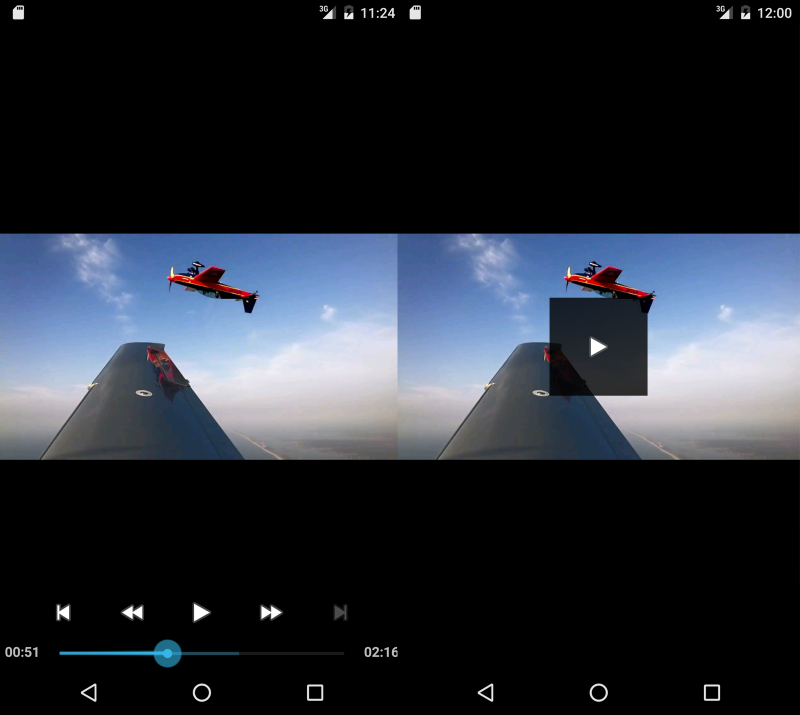
As an example, suppose we want our playback controls to consist of only a
play/pause button positioned in the center of the view. We can achieve this by
creating exo_player_control_view.xml file in the application’s res/layout
directory, containing:
<FrameLayout xmlns:android="http://schemas.android.com/apk/res/android"
    android:layout_width="match_parent"
    android:layout_height="match_parent">

  <ImageButton android:id="@id/exo_play"
      android:layout_width="100dp"
      android:layout_height="100dp"
      android:layout_gravity="center"
      android:background="#CC000000"
      style="@style/ExoMediaButton.Play"/>

  <ImageButton android:id="@id/exo_pause"
      android:layout_width="100dp"
      android:layout_height="100dp"
      android:layout_gravity="center"
      android:background="#CC000000"
      style="@style/ExoMediaButton.Pause"/>

</FrameLayout>
The change in visual appearance compared to the standard controls is shown below.
Custom layout files
Overriding a layout file is an excellent solution for changing the layout across
the whole of an application, but what if a custom layout is required only in a
single place? To achieve this, first define a layout file as though overriding
one of the default layouts, but this time giving it a different file name, for
example custom_controls.xml. Second, use an attribute to indicate that this
layout should be used when inflating the view. For example when using
PlayerView, the layout inflated to provide the playback controls can be
specified using the controller_layout_id attribute:
<com.google.android.exoplayer2.ui.PlayerView android:id="@+id/player_view"
     android:layout_width="match_parent"
     android:layout_height="match_parent"
     app:controller_layout_id="@layout/custom_controls"/>